Features / Studio
Run it all from one plain menu.
Studio is where you set up and run your community: content, pricing, members, orders and settings. One menu, built for owners who aren't technical.
0% platform fees14-day free trial, no cardCancel anytime30-day refund on your first payment

Selling a course, side by side
The same job on a WordPress and BuddyBoss site, and in Studio.
WordPress with BuddyBoss
A plugin for each part
3 plugins · 3 settings areas · 3 sets of updates
- BuddyBoss for the community and its groups
- LearnDash for the course and its lessons
- WooCommerce or MemberPress to take the payment
Each one has its own settings screens and its own updates.
Studio
One menu item: Courses
1 menu item · 4 steps · 1 screen
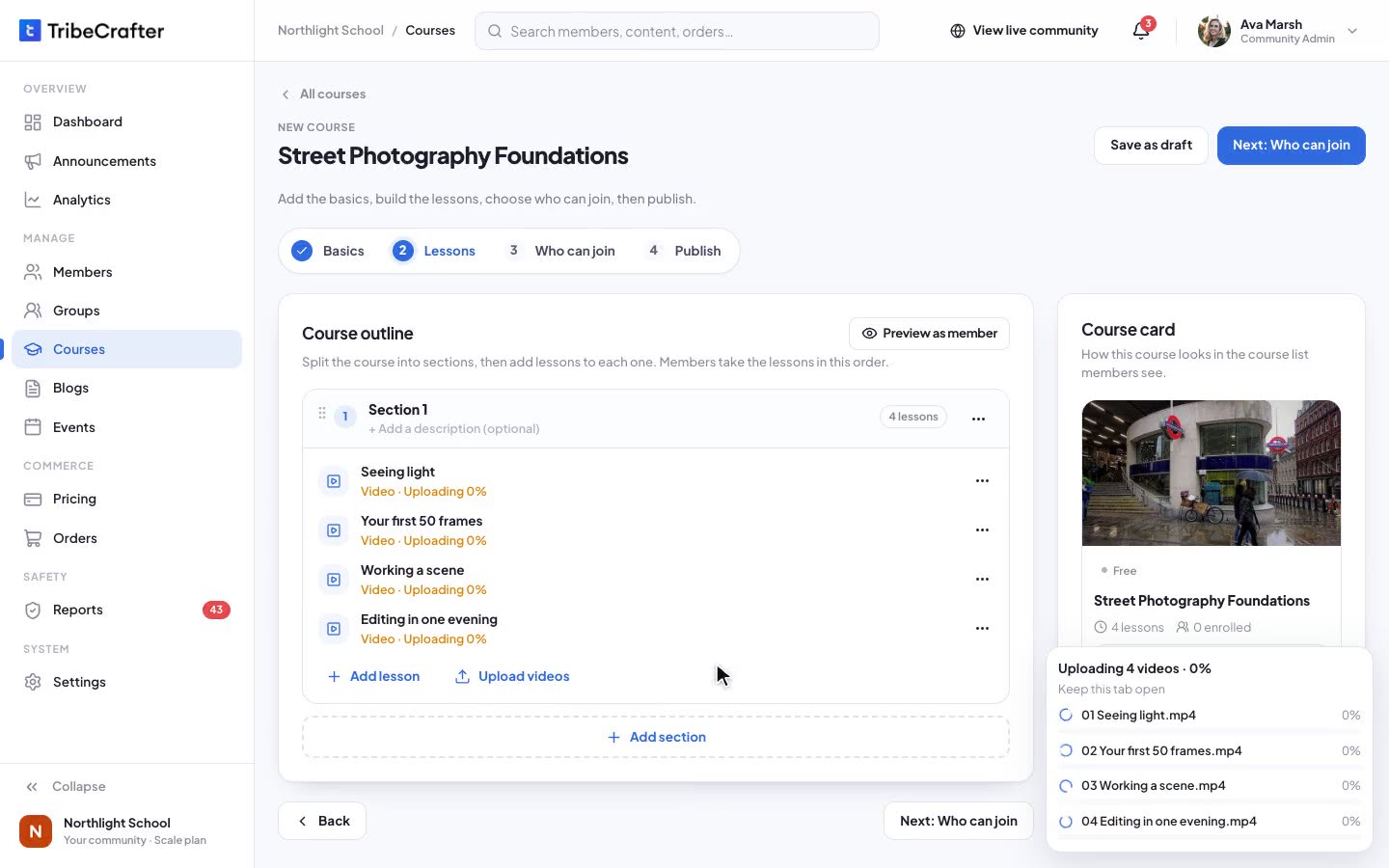
- Basics: the name and the course card
- Lessons: upload your videos, and each becomes a lesson
- Who can join: any member for free, or paying members through a plan or product
- Publish: a paid course needs a way to pay before it goes live
Four steps on one screen. It's the flow in the video above.
Coming from another hosted platform? See how we compare with Circle, Kajabi, Mighty Networks and Skool.

The menus are grouped in a way that just makes sense. It's not complex at all, super self-explanatory, and easy to pick up.Cheerlyn, Creative Director at Great Big Photography World. They moved from BuddyBoss to TribeCrafter; our founder looked after their old site for years. How they moved
Six things, then you're live.
A short checklist gets you live, and the founder can go through it with you on a call. Then you pick what to set up first, and Studio walks you through the steps.
As it looks in Studio
Before you go live
4 of 6 done
- Community name
- Logo
- Welcome heading
- Welcome text
- Community guidelines
- One published group
Your go-live checklist
Your name, logo, welcome heading and text, guidelines and one group. Each ticks as you save it, and the list follows you to every screen. Save the last one and your community goes live by itself.
Then, in Studio
What do you want to set up first?
Each goal opens its own short list of steps.
Everything in one menu
This is the whole menu. Each row is one part of it, top to bottom. No plugins to install and no second admin to learn.
- Dashboard and AnalyticsMembers and signups, revenue and monthly recurring revenue, course enrollments and completions, and group activity, at a glance.
- AnnouncementsPost a notice to your members, shown as a banner across your site.
- MembersYour member list, roles and suspensions, and a CSV export. Invite people by email, many addresses at once, and each gets a join link.
- Groups, Courses, Blogs, Events
- Groups: free or paid, each with its own feed, members and shared files.
- Courses: upload many videos at once, or a whole folder, and each becomes a lesson. Uploads keep going while you work.
- Blogs: a block editor, with premium Collections for paying members.
- Events: online or in person, and members get reminders before they start.
- PricingPlans and one-time products in one place. A paid group or course can't go live without a price. Give access adds paid content to a member for free.
- OrdersWho paid, for what and when, with refunds that close the access they gave. Every order shows the TribeCrafter fee, $0.00, and that the money went to your own Stripe account.
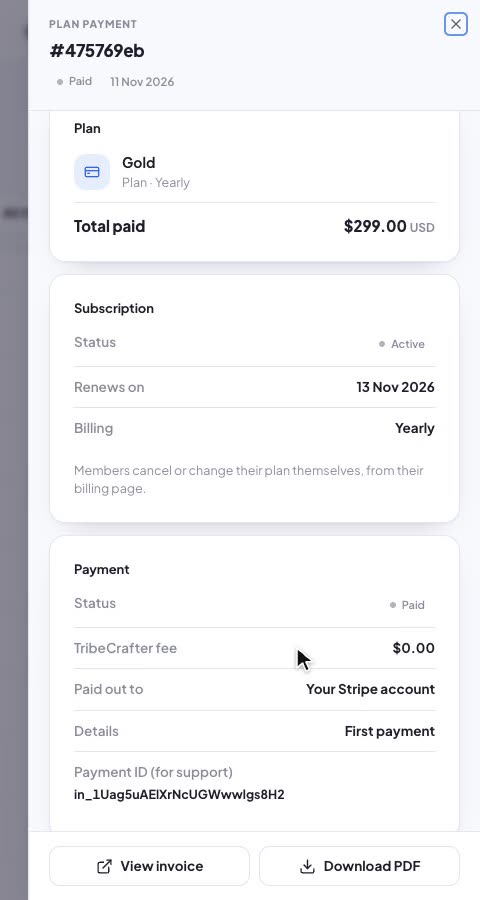
A real order: $299.00 paid, TribeCrafter fee $0.00, paid out to your Stripe account. - ReportsReported posts and comments land in a review queue. Remove, restore or keep them, and suspend or reactivate the author. You and your Community Admins get a notification for each new report.
- SettingsBranding, landing page, search engine settings (SEO), legal pages, sign-in, your domain and sending email, Stripe payouts, and which features are switched on.
Bring your team
Give each person a role. Moderators, Course Managers and Blog Managers see a shorter menu with only the parts their job needs, and never your members' email addresses.
- Community AdminOpens: everythingRuns the community with you. Only you, the owner, can change another admin's role or access.
- ModeratorOpens: Members, Reports, GroupsWorks the review queue for the whole community: removes, restores or keeps reported posts, and can suspend the author.
- Course ManagerOpens: CoursesBuilds and updates courses and their lessons.
- Blog ManagerOpens: BlogsWrites and publishes blog posts.
Admins and Moderators each take a team seat, you included: 3 on Starter, 10 on Growth, 30 on Scale. Course Managers and Blog Managers don't count. Compare plans

Talk it through with the founder.
I answer support myself, and a small team builds the product with me. On a 30-minute call we look at what you want to run and how to set it up here.
Faizan, founder and technical leadQuestions owners ask about Studio
Do I need to be technical?
No. If you can fill in a form and upload a video, you can run Studio. Every area is one item in the menu, and nothing needs a plugin or code.
What does it take to go live?
Six items: your community name, logo, welcome heading, welcome text, guidelines and one published group. Studio ticks each one as you save it. Until then, visitors see a holding page, and the founder can go through the list with you on a call.
Does the founder set it up for me?
He walks you through Studio and answers your questions, when you start and after, while you add your courses and posts.
Can I run Studio from my phone?
Yes, in your phone's browser: the menu opens from the button at the top. Your members use the community in their phone's browser too, and native iOS and Android apps arrive in early 2027.
Can I try Studio before I pay?
Yes. The 14-day free trial includes all of Studio, and you don't need a card. Ask within 30 days of your first payment and we refund it in full. After that, cancel anytime.
I'm moving from another platform. Do I set everything up again?
From WordPress or BuddyBoss, we move your members and the content that matters, and you check it in Studio. From Kajabi, Teachable, Circle, Mighty Networks, Skool or a Facebook group, you invite your members by email and add your content in Studio. How a BuddyBoss move works
Will my members see the Beta label?
No. It sits in the menu only you and your staff see. Studio went live on 2 November 2026, runs live communities today, and gets updates every one to two weeks.
Can my team use it without seeing everything?
Yes. Moderators see Members, Reports and Groups, Course Managers see Courses, and Blog Managers see Blogs. None of them see your members' email addresses. Admins and Moderators take a team seat; Course Managers and Blog Managers don't.
Can I hide parts of the community I don't use?
Yes. In Settings you can turn off courses, events and the blog while you don't use them, and chat at any time.
Open Studio today.
Set it up yourself, or book 30 minutes with the founder first and ask anything.
14-day free trial, no cardCancel your plan anytime30-day refund on your first payment